
Want to see where customers get stuck or drop off during checkout—without exposing sensitive details like their payment information in session recordings? Or spot issues that only show up when customers visit your site on mobile or tablet?
Both are now easier in Contentsquare, and those are just two of the September 2026 updates. Others give you tighter account security and more ways to keep personal data private. Plus, you can now pinpoint what’s slowing your pages down and prioritize fixes.
We’ve grouped this month’s updates into three areas:
See what’s happening on your pages and where to improve
Get started sooner and handle admin tasks on your own
Keep your account and customer data secure
For each update, we explain what changed, who it’s for, and how it supports your goals.
Key insights
See how people experience your site on mobile and tablet. CSQ Live—our browser extension to see how visitors use your pages—now displays true device views and adds AI summaries to help you understand what you find.
Help new users digital experience insights faster. The Setup Assistant launches automatically to guide them through set-up.
Control where your Enterprise Contentsquare account can be accessed from. With IP allowlist, even someone with valid login details can’t get in unless they’re connecting from a network you’ve approved—like your office.
Find and protect personal data on your site without waiting for developer support. Sense Masking (in Open Beta) scans the web pages you visit and suggests what information to mask.
Identify what's slowing down your website and prioritize fixes. Performance Audit Reports now use four Lighthouse™ scores instead of one and rank issues by their estimated Core Web Vitals impact.
See what’s happening on your pages and where to improve
1. Analyze your site faster with AI and improved device views
CS Live (renamed CSQ Live) is a browser extension that shows you how visitors interact with different parts of your website. It uses Contentsquare’s Zoning Analysis, so you can see which areas get the most clicks as you browse a page.
CSQ Live now includes AI summaries powered by Sense. They explain what the data shows and highlight findings you can act on, so you know where to focus your efforts.
The redesign also frees up your screen. CS Live used to take over the whole thing, so you had to end your analysis to keep browsing. Now it sits in a sidebar, and your site stays in view the whole time. You can also collapse the sidebar when you need more space.
![[Visual] CSQ Live opens in Zoning Mode by default, and you can switch modes from the sidebar](http://images.ctfassets.net/gwbpo1m641r7/7tz2JwkH3hrfqrolIvSKF8/464e9fb92fce3f431c9d58dda4e90e90/CSQ_Live_opens_in_Zoning_Mode_by_default__and_you_can_switch_modes_from_the_sidebar.png?w=1280&q=85&fit=scale&fm=avif)
CSQ Live opens in Zoning Mode by default, and you can switch modes from the sidebar
Switching to a mobile or tablet view is more realistic too. You now see the page the way it actually looks on those devices, not just a shrunken version of your desktop browser. This way, you can easily analyze how visitors interact with your pages on smaller screens and spot areas that need attention.
Growth, Pro, and Enterprise users can access CSQ Live on web as it rolls out.
2. Find and fix performance issues faster with Lighthouse insights
Previously, Synthetic Monitoring ran automated tests to check how your pages loaded. It used to give each page one overall score based on Contentsquare’s own scoring system and generate a report.
Now, those reports are called Performance Audit Reports and use Lighthouse™, a widely used tool by Google for checking website performance.
Each report gives you four scores, so you can see how your pages are doing:
Performance: how quickly your page loads and how smoothly it works for visitors
Accessibility: how easy your page is to use for people with disabilities
Best practices: whether the page follows modern web standards—like using a secure connection and avoiding browser errors
SEO: how well the page is set up for search engines to find and understand it
You also get suggested fixes ranked by how much they’re likely to improve your Core Web Vitals—Google’s measures of how quickly and smoothly a page loads. That way, you know which issues to tackle first.
![[Visual] Performance Audit Reports bring your Lighthouse scores and recommended fixes into one view](http://images.ctfassets.net/gwbpo1m641r7/1GXZe2ky4zPH678b8hmsGk/c6ea5dc873da7f751fe8a9a3ad405a33/Performance_Audit_Reports_bring_your_Lighthouse_scores_and_recommended_fixes_into_one_view.png?w=958&q=85&fit=scale&fm=avif)
Performance Audit Reports bring your Lighthouse scores and recommended fixes into one view
Once you know which issues to prioritize, investigate what’s causing them. You can now watch how your page loads in a larger video player, similar to Session Replay.
Then, use the Waterfall view to see which parts take the longest to load. It also comes with an AI summary to help you understand what’s slowing the page down.
Performance Audit Reports are available on web if you have Synthetic Monitoring.
The new format shows up automatically for reports created from August 25, while older ones stay the same. If you had alerts set up on the old performance score, they’ve been switched off, so you’ll need to create new ones using the Lighthouse scores.
Learn more about Performance Audit Reports
Get started sooner and handle admin tasks on your own
3. Help new users complete onboarding faster
Previously, new self-serve users had to work through a static checklist to install the Contentsquare tracking tag on their website.
Setup Assistant replaces that checklist with a 3-step guided flow that walks them through installing the tag, setting up data masking, and inviting their team. So they spend less time setting up and more time understanding how visitors use their site.
The assistant launches automatically at their first login on Free and Growth plans. New users can also choose how to install the tag. They can:
Use an AI coding assistant
Add the tag to their website's code manually
Install it through Shopify or Salesforce, if their site uses either platform
Use a supported tag manager, such as Google Tag Manager, Tealium, Adobe Launch, or Commander’s Act
Choose ‘Send to a developer’ to email the installation instructions to the teammate who manages their site’s code
Once their tag is verified, Contentsquare takes them to the part of the platform that best matches what they want to do, so they can start exploring right away. They also get an updated Quick Start Guide to help them find their way around.
Learn more about Setup Assistant
4. Install and manage integrations without waiting on support
As an admin, you can now install website integrations directly from the catalog without opening a support ticket. Teammates who aren't admins but want to connect a tool can send a request for you to review. And you can easily approve or dismiss their request through the new Requested Integrations view.
Also, each installed integration now shows a status label—active, pending, action required, or error—so you can quickly spot what needs your attention.
![[Visual] Set up alerts to get notified about new requests by email, or connect Microsoft Teams to receive them there](http://images.ctfassets.net/gwbpo1m641r7/wg5hICRHnzUKYPZzNe0He/c0dd2e9c3e503a5950bd05368c5b229b/Set_up_alerts_to_get_notified_about_new_requests_by_email__or_connect_Microsoft_Teams_to_receive_them_there.png?w=1280&q=85&fit=scale&fm=avif)
Set up alerts to get notified about new requests by email, or connect Microsoft Teams to receive them there
Integration details pages are easier to follow, too—they now include step-by-step guides, images, external resources, and tips. The new layout is rolling out across the catalog, so some integrations may still show the previous design.
This update is available on web for Free, Growth, Pro, and Enterprise plans, with no setup required.
Learn more about installing and managing integrations
Keep your account and customer data secure
5. Protect sensitive data in Session Replay
Session Replay lets you watch recordings of how visitors use your website or mobile app. But now you have three ways to control what personal information appears in those recordings, depending on whether you're analyzing your website or mobile app.
Sense Masking (currently in Open Beta, for web): as you move through pages on your website, Sense Masking uses AI to scan each page and suggest personal information to hide in Session Replay. Admins can accept, edit, or dismiss each suggestion, and only approved rules are added to your masking settings.
Sense Masking is available on web for Growth, Pro, and Enterprise plans. Since it’s still in beta, a few things are being developed. For example, masking rules won’t update automatically as your website changes, so you’ll need to review them regularly.
Learn more about Sense Masking
Controlled Exposure (for mobile): this feature lets you choose which personal data in your app, like user IDs or on-screen text, stays hidden in Session Replay.
The information is encrypted before it reaches Contentsquare and never stored in plain text. Only authorized users can reveal it using your company’s private key, and every reveal is logged so you know who viewed it and when.
Controlled Exposure is available for mobile apps on Pro and Enterprise plans. To use it, you’ll need to record at least 50% of your app sessions, though we recommend recording all of them if possible. You’ll also need to contact your Contentsquare team to enable the feature and have your developers set up encryption in your app.
Learn more about Controlled Exposure
Element Masking (for web): as an Admin or Expert, you can mask specific parts of a web page, like names or email addresses on a form, directly in Contentsquare using the new rule manager. You can also unmask parts of a page when you need to do so, without using the Tag Configurator or getting help from your dev team.
Element Masking is available on web for all plans. We’re retiring Tag Configurator’s masking templates, so now’s a good time to start managing your rules in Contentsquare.
![[Visula] Update your element rules in Data Masking, and the changes will go live on your website right away, with no need to redeploy your tag](http://images.ctfassets.net/gwbpo1m641r7/10YtNd51EFDeF1CB2iH18x/268c0464f3f16bbcbbb0cdf796b0c8c4/Update_your_element_rules_in_Data_Masking__and_the_changes_will_go_live_on_your_website_right_away__with_no_need_to_redeploy.png?w=1280&q=85&fit=scale&fm=avif)
Update your element rules in Data Masking, and the changes will go live on your website right away, with no need to redeploy your tag
Learn more about Element Masking
6. Control where your Contentsquare account can be accessed from
IP allowlist lets you choose which IP addresses can access your Contentsquare account. Once it’s turned on, anyone trying to connect from outside that approved list is blocked, even if they have the right log-in details.
The restriction applies to everyone using the Contentsquare app and Console. It also applies to Contentsquare’s team, unless you add their IP addresses to your list.
For Enterprise customers—especially for organizations with strict security and compliance requirements—the IP allowlist adds an extra layer of protection. Your IT team can add single addresses or whole ranges using the standard CIDR format.
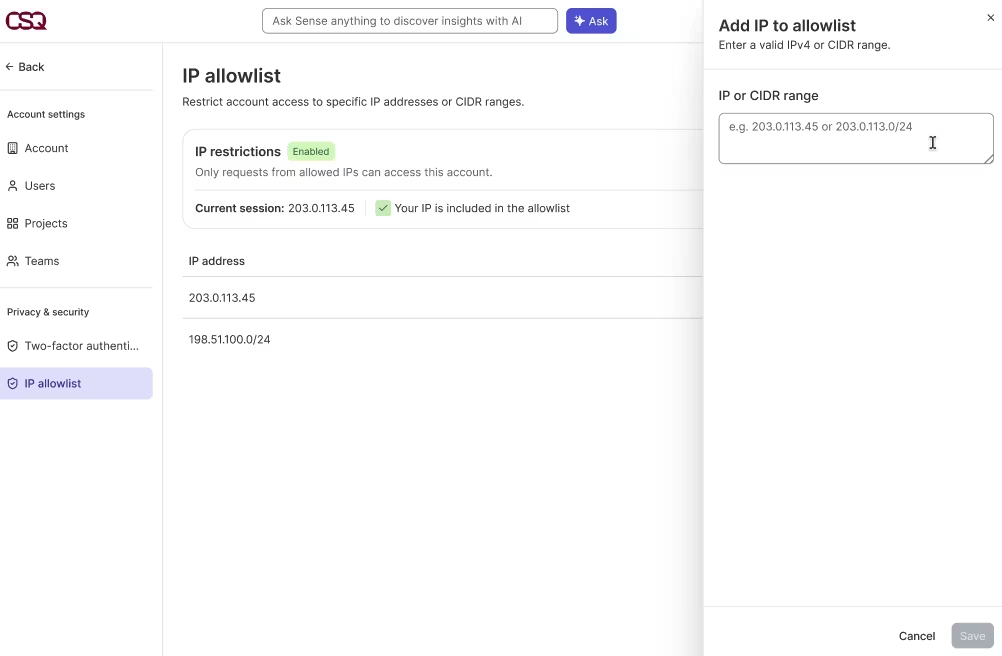
The IP allowlist page shows which IP address you’re using right now, whether it’s on the list, and where to add new ones
IP allowlist is available as an Enterprise plan add-on for web and mobile, so reach out to your Contentsquare team to get it set up.
Take control with the latest Contentsquare updates
Start with the update that solves the most immediate problem for your team.
Want to see how visitors interact with your pages without leaving your site? Try the new CSQ Live.
Not sure which performance fixes to tackle first? Run a new Performance Audit Report.
Just signed up for Contentsquare? Let Setup Assistant guide you through getting started.
Still waiting on support to connect website tools you already use? Try the revamped integrations catalog.
Need help finding personal data across your site to mask? Try Sense Masking (Open Beta).
Need to reveal personal data in mobile replays only when there’s a real reason to? Ask about Controlled Exposure.
Need to hide a form field or other sensitive detail from Session Replay? Head to the new Element rules manager.
Want tighter control over where your account can be accessed from? Ask your Contentsquare team about the IP allowlist.
![[Visual] Contentsquare's Content Team](http://images.ctfassets.net/gwbpo1m641r7/3IVEUbRzFIoC9mf5EJ2qHY/f25ccd2131dfd63f5c63b5b92cc4ba20/Copy_of_Copy_of_BLOG-icp-8117438.jpeg?w=946&q=85&fit=scale&fm=avif)
We’re an international team of content experts and writers with a passion for all things customer experience (CX). From best practices to the hottest trends in digital, we’ve got it covered. Explore our guides to learn everything you need to know to create experiences that your customers will love. Happy reading!
![[Blog] [Visual] Contentsquare's MCP](http://images.ctfassets.net/gwbpo1m641r7/5LCFhK68ROZ4LLkDAeaIKB/75eee8adbcc634dbdccf086807afc279/AdobeStock_361859073.jpeg?w=624&q=85&fit=scale&fm=avif)