![[Stock] Unlocking the power of customer journey visualization – Step by step — Cover Image](http://images.ctfassets.net/gwbpo1m641r7/1E3yKJe4En4Jq36yjJl4vW/f7befc254b7ce2102e5ebe1e4586814b/customer-journey-visualization-people-draw-1.jpg?w=3840&q=100&fit=fill&fm=avif)
Website bugs happen—even with meticulous checks, a few often slip into production.
That’s why evaluating bugs as they arise is crucial. Understanding their impact helps you prioritize fixes and ensures resources are spent wisely. Without this step, you risk wasting time on minor issues or, worse, underestimating major problems that could frustrate users and drive them away.
This article outlines a 3-step framework to systematically gather all the information you need to understand the impact of a bug, so you can take action fast—and catch any critical errors before they hurt your bottom line and business goals.
A 3-step framework to evaluate the impact of a bug
It’s crucial to evaluate how many users are affected by a bug, and to what extent it’s preventing them from achieving their goals on your site.
However, when you take time to stand back and make a proper assessment, make sure to:
Avoid overreacting: development resources are precious—it’s not worth burning out your dev team by requesting fast fixes for obscure bugs. You risk throwing off your team’s schedule of (potentially) exciting product improvements when you react to a bug before assessing its reach.
Avoid underreacting: critical errors can drive users away before you even realize there’s an issue. It’s worth allocating significant resources to resolve bugs that disrupt key user flows or affect a large number of users.
Avoid discriminating against user groups: it’s vital to understand if a bug only appears on a version of your site associated with a certain user attribute—say on screenreaders or in a particular language. Delay fixing a bug associated with a demographic, and you risk making these users feel unimportant.
Here’s how to size the reach of a bug in 3 simple steps.
1. Gather bug reports 🐞
The first step of fixing a bug is realizing it’s there. First, gather the logs and reports that flagged this problem to you. Here’s how.
Look through error logs
In many cases, when a bug appears, you’ll catch wind via the error log in your web server. An error log gives you a text-based account of anything that’s gone noticeably wrong in your code.
The relevant entry in your error log will tell you
The page your user requested
The page your user was on before encountering the error
The time and date the bug occurred
The software version it occurred on
Reviewing error logs alone won’t fully reveal a bug’s impact, but counting the number of occurrences can give you a sense of its reach.
💡 Pro tip: remember that error logs can’t capture everything. Problems that slip through the net include
UX-related bugs (e.g. if nothing’s wrong with the code, but your CTA looks too small to be clickable on mobile)
Silent errors (which happen without triggering an error log)
Heisenbugs (bugs that are hard to reproduce consistently)
Check out user reports
Next, head over to your customer support channels and see what your users are saying.
How often is the bug reported? Who is reporting it?
Answering these questions helps you spot trends, such as the operating system or device the bug seems to appear on, so you can estimate the scale of the problem.
User reports of software errors are like cockroaches: if you see one report, there are probably a lot more bug occurrences out of sight. It’s quite rare for users to actually contact you over bugs.
More often than not, if a user encounters an error, they either live with it or leave your site—that’s why it's crucial to be proactive about cross-referencing error reports with other data.
💡 Pro tip: encourage your users to report bugs without the friction of emailing your customer support team by adding a Contentsquare feedback widget to your important pages. This allows users to quickly and easily comment on their experience while they’re on your website.

On-page feedback widgets give users an effortless way to tell you how they feel
2. Collect analytics data 📈
Once you have an idea of what the error looks like from the perspective of your developers and support team, it’s time to take the magnifying glass to your analytics software.
For a big-picture perspective on how this bug impacts user behavior, experience intelligence tools are your best friend.
Examine rage click maps
Rage clicks—repeated clicks to the same spot, that typically indicate frustration—are a solid hint that users are encountering a bug. Tracking rage clicks helps you uncover the kind of UX issues that an error log just can’t see.
Use the Contentsquare Heatmaps tool to create rage click maps, which show aggregate data on where users clicked angrily on a particular page. If a rage click map shows that many—or even most—users are experiencing frustration with a particular element, there’s a good chance you’re dealing with a high-reach bug.
Watch session replays
Capture and watch some session replays of the pages your bug affects. Session replays are anonymized playbacks of users’ mouse movements as they click, scroll, and browse through your site, and they’re an invaluable way to see how an error appears through your users’ eyes.
Create your session recordings using Contentsquare Session Replay, and you’ll be able to filter them by behaviors and variables that could flag an error, helping you understand how many users are dealing with your bug. Filtering options include:
Rage clicks: repeated clicks to the same spot which usually indicate something’s not working as it should
Bounce: when a user leaves your site after landing on a page
Frustration score: a mix of behaviors that indicate a user is having a hard time finding what they’re looking for on your site, including things like rage clicks and no clicks on the page
Errors: users who experienced JS and API errors
and more.
💡 Pro tip: Contentsquare Error Analysis surfaces bugs and errors so you don’t need to wait for customers to complain about them. See how errors trend over time and watch replays containing errors.
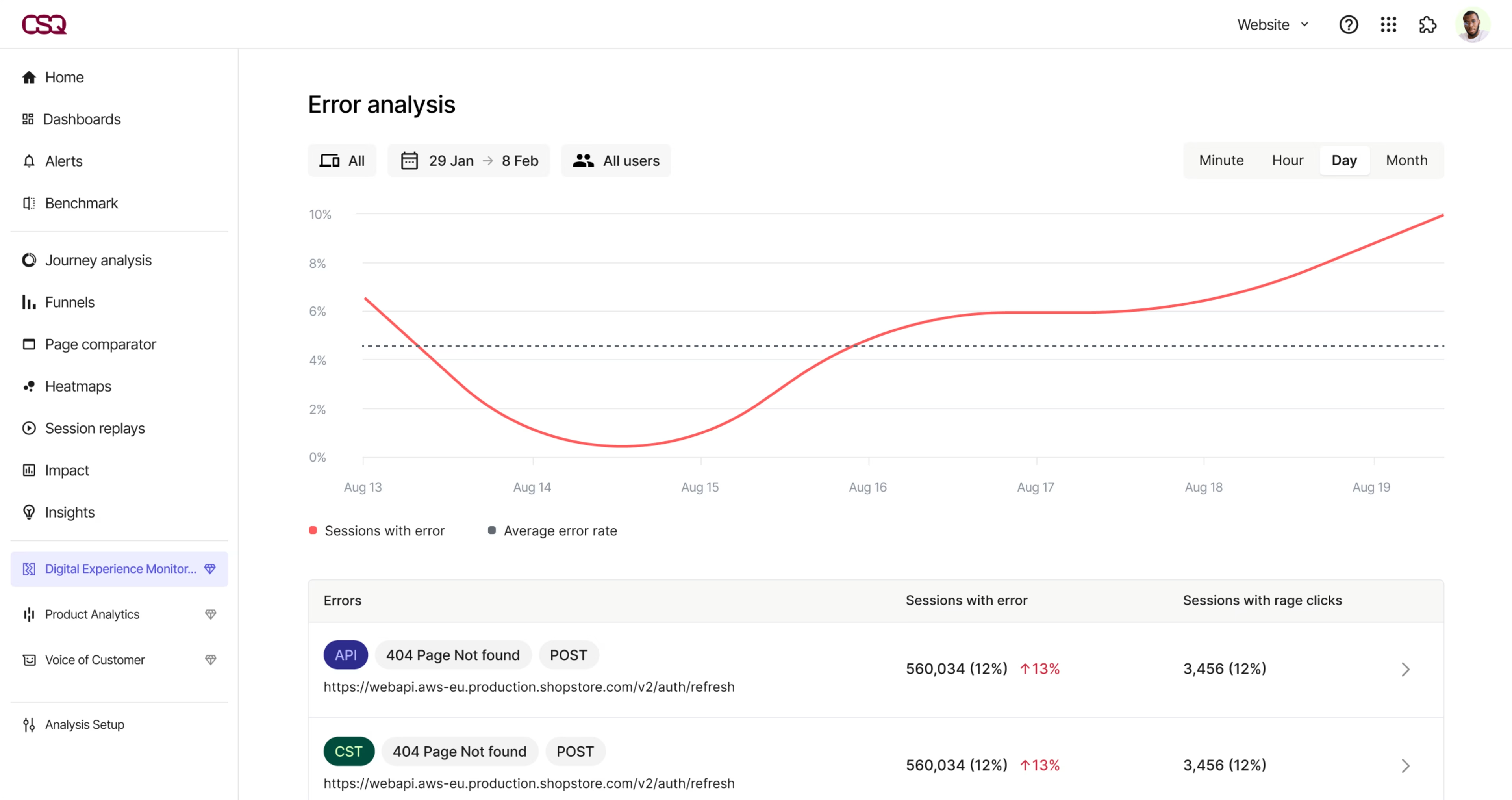
Then, quantify errors with Impact Quantification—a tool that assigns a dollar value to your errors and lets you prioritize and fix the errors that are hurting your bottom line.
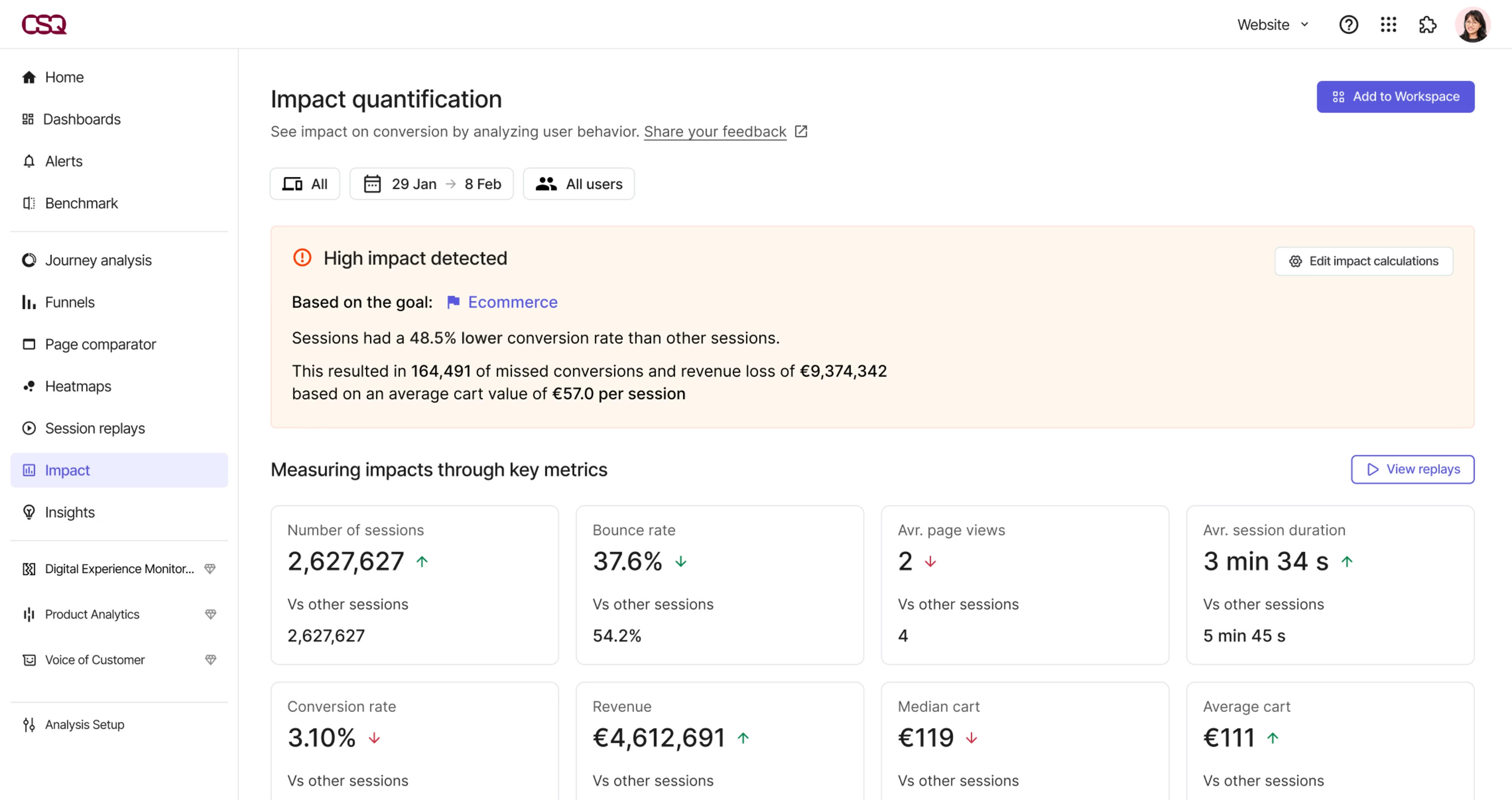
The team at DFS, the UK’s leading sofa retailer, used Contentsquare’s Error Analysis to flag errors after a site relaunch. Impact Quantification helped their team understand the scope of each error and prioritize which bugs needed to be fixed, fast.
Having Contentsquare in place meant that we could identify the error immediately and get it fixed within a few days. It gave us the confidence to know we could quickly identify issues or opportunities and fix site errors.
3. Implement deductive reasoning 🕵️
Now that you’ve gathered information on where the bug is, what it looks like, and the percentage of your users who experience it, it’s time to dig deeper by putting your detective hat on and inferring patterns. Here’s how.
Consider different user bases
To make educated guesses about how many users your bug will impact, consider the different versions of your site visible to different user bases. An error might only affect users who access your site via a particular device, browser, or geographic location.
Some of this information may be available in your error log, and some of it you’ll be able to see within Contentsquare, or whichever analytics tool you’re using.
For example, you might see from Contentsquare that your checkout page error only shows up in session replays of users browsing your site on mobile.
Identifying which segment of your user base encounters an error helps you calculate the percentage of users it may affect—though you won’t be able to calculate the exact amount until you’ve also identified the scenarios it affects them in.
Analyze key user paths
From what you know of your customer journey and key flows, consider which action your users are trying to complete when this error appears.
It may be that this error does not interfere with any important processes, and only appears when users behave unexpectedly. Or it may be that this bug appears slap-bang in the middle of your conversion flow. Figuring out which processes are affected helps you assess how often this error could possibly come up.
💡 Pro tip: use Contentsquare Funnels to visualize the percentage of users who pass through each stage of your important flows, and which stages see the most drop-offs.
![[Visual] Funnel](http://images.ctfassets.net/gwbpo1m641r7/5qJ3s2fokYQsjHKYmSV1t1/bf1ac4f121df3271c77c5c7e748bf1a3/unnamed__18_.png?w=1080&q=100&fit=fill&fm=avif)
The Contentsquare Funnels tool lets you track events leading up to important actions on your site and watch replays from users who dropped off
Best of all, you can jump to specific replays within certain funnel stages. For example, if your bug is leading to user drop-off at a particular stage, you can watch recordings of the moment these users abandoned the process, which can give you more context over what’s happening and why.
Run tests
Finally, try to replicate the error yourself, so you can get a clearer idea of when it appears to users. Try using the problem page under various conditions, including
Different devices (laptops, mobile phones, tablets)
Varying degrees of user authentication (whether they’re logged in or not)
Using the page after having navigated away from it, then returned to it via the back button
As different user types (admin, moderator, or end-user, for example)
Remember to document all your attempts at replication, so you and your team members don’t need to repeat work.
By accessing the problem page or element in different conditions, you can shed light on which scenarios and user paths your bug affects, and, ultimately, estimate the percentage of users who are impacted.
💡 Pro tip: Struggling to replicate a bug on your end? Filter replays by user identifiers, such as IP addresses or emails, to quickly find and review instances where users encountered errors.
![[Visual] Session replay error](http://images.ctfassets.net/gwbpo1m641r7/3cOsvGdukug6r4EWMDYrk2/c659adb54024170cca7e57894995366a/session-replay-filters.png?w=750&q=100&fit=fill&fm=avif)
User IDs help you quickly locate replays linked to users who’ve reported bugs, allowing you to see exactly what they experienced—even if you can't replicate the error on your end
Size your bug → tackle it appropriately
Software errors are unpredictable. You never know where one will pop up or who it will impact—so you need to be proactive.
Even if your site seems spotless right now, get familiar with your error logs, check in with support regularly, and set up a digital experience insights software.
Or, use a platform like Contentsquare to proactively monitor—and alert you to—bugs on your site.
Then, use our tools to dig further into errors to understand who they affect, how much money they cost you, and what you need to do to fix them.
Get started with Contentsquare now, and when a bug does strike, you’ll quickly get a sense of whether it’s a flea or a jungle caterpillar—and dedicate resources accordingly. 🐛
FAQs about evaluating website bugs
Usability errors often fly under the radar of bug-reporting software, but there are plenty of ways to check for them:
Conduct user testing by recruiting participants and asking them to navigate your site for the first time, as they narrate their thoughts aloud. Use Contentsquare Interviews to streamline the process of running user interviews and note any difficulties they have while you gather valuable feedback.
Check your mobile responsiveness. Remember to preview your site on a range of devices, including mobiles of different screen sizes. Ensure your forms, links, buttons, and other interactive elements work as you intended.
Run functionality tests. Run through all the interactive elements on your site and ensure they work as they should.

Dana is a copywriting specialist with deep expertise in creating assets like blog posts and landing pages that position organizations as the obvious first choice in their market. She holds a Bachelor of Business Administration in Marketing and has over 10 years of experience helping leading B2B brands drive traffic and increase conversions. Having taught more than 1,000 entrepreneurs the art of persuasive copywriting, Dana brings unique insight into what resonates with audiences and delivers results.